
What is an Alternate?
Alternates allows you to designate specific Items as "Alternates." Alternate Item are color coded and shown separately at the bottom of the Bid Sheet and are not factored into the Base bid price.
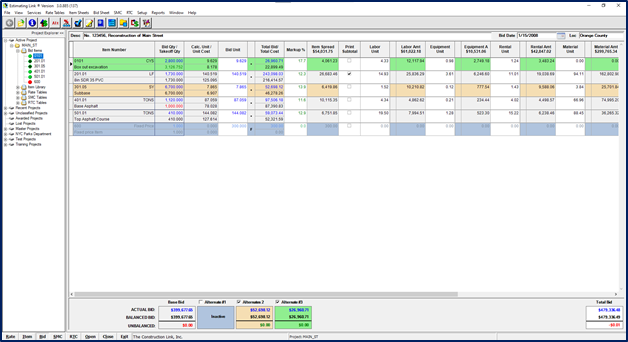
On the screenshot above:
- Item #600 is marked as Alternate #1, a Fixed Price Item and as Inactive.
- Item # 301.05 is marked as Alternate #2 as Active.
- Item # 0101 is marked as Alternate #3 and is Active.
Applying/Adding an Alternate on the Bid Sheet
By default, Items are classified as regular Items. To categorize an Item as an Alternate Item on the Bid Sheet, right click on the intended Item. Choose Alternate and Fixed Price and select your desired Alternate number:
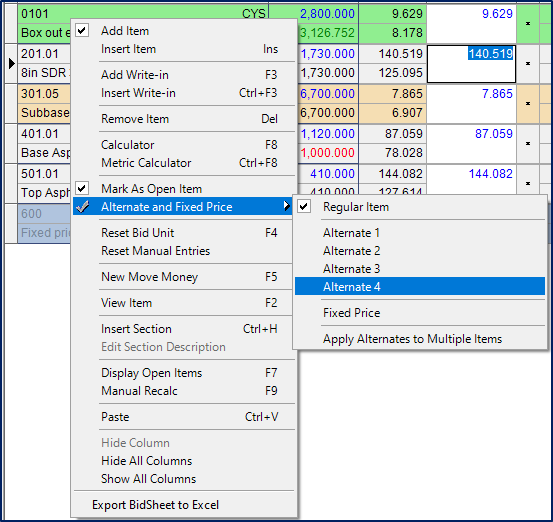
The alternate will be color coded on the bid sheet and the item(s) totals will be shown separately from the base bid.
Activate, Deactivate and Print
The bottom pane of the Bid Sheet shows your individual Alternates with the Actual Bid, Balance Bid and Unbalanced Bid values.
To Activate or Inactivate an Alternate, simply click the check mark next to the respective alternate.
You can also Activate or Inactivate Alternates and print A Summary of Alternate Scenarios by using the icon at the top of the Bid Sheet:

Clicking this icon will bring up the Summary of Alternate Scenarios window:
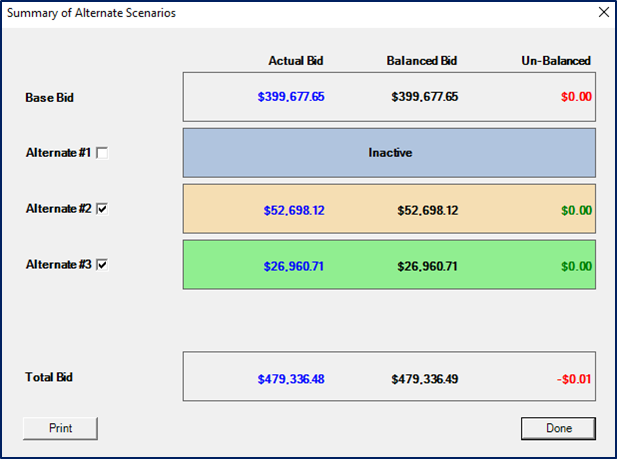
From the Summary of Alternate Scenarios window you can activate or deactivate alternates by checking the box next to the respective Alternate and you can print an Alternate Summary Report.
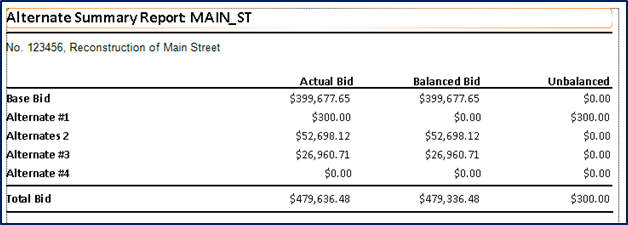
A preview of printing the Alternate Summary Report is shown below:
Apply Alternates to Multiple Items
On the Bid Sheet, right click on an Item > Alternate and Fixed Price > Apply Alternates to Multiple Items and the Select Items as Alternates window will be displayed.
You can also get there while on the Bid Sheet by going to Services > Select Items as Alternates.
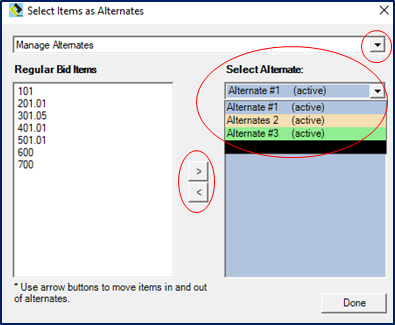
*Note: If you've already categorized your Item by right clicking on it and marking it as an Alternate or Fixed Price, it will not show up on this table.
At the top of the window, you can select whether you want to Manage Alternates, Manage Fixed Price Items, or Manage Both. Click on the down arrow to choose what you'd like to do.
In the Select Items as Alternates window, select the Alternate number you want the Items to be designated as.
Once you have your Items selected, select a range of Items using the Shift key and the Arrow key or select individual Items using the Control key and arrow pointer with the left mouse click.
Alternate Descriptions & Colors
You can change the Alternate descriptions and colors by going to File > Project Properties. The Project Properties window will appear. Select the Alternates tab at the top:
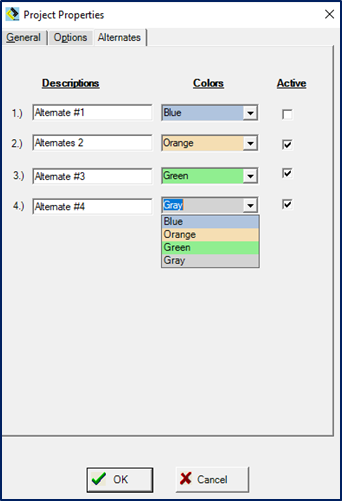
To edit the Description of the Alternate, simple click in the box and title it with what you would like.
To change the color, use the down arrow and select the desired color.
You can also activate and deactivate Alternates in this window.
Using more than 8 Alternates
Your project allows you to use up to 8 Alternates. If you would like to analyze more than 8 alternates, copy your current project, rename it (example: Main St. Alternates 9-12), and add your additional alternates.
Would you like more help?


