
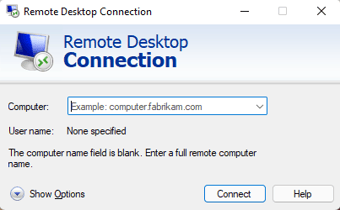
Click on Show Options down arrow and the window expands to look like the below:
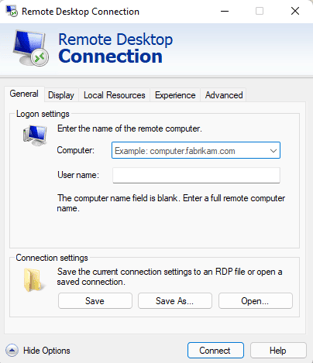
Enter:
- The Computer name that was provided to you in your welcome email.
- Your User name that was provided to you in your welcome email.
Using the tabs at the top of the window, click on the Local Resources tab:
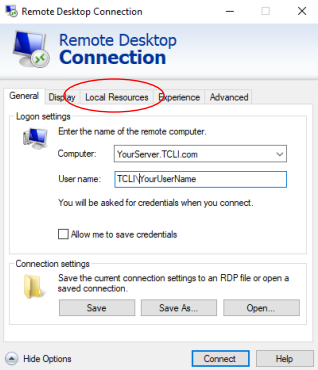
The Local Resources window is now displayed. Click on the More button:
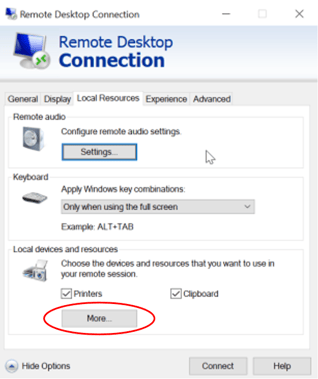
Check the box for Drives:
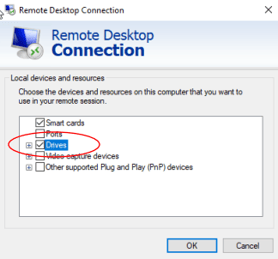
Click OK.
Now click on the Advanced tab and then click on the Settings button:
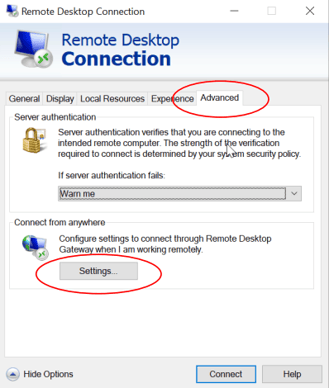
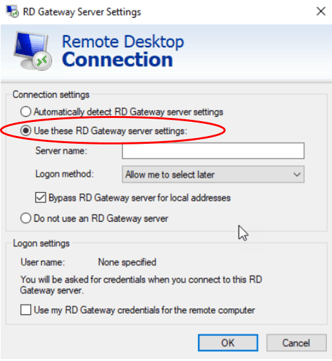
Check the option to Use these RD Gateway server settings:
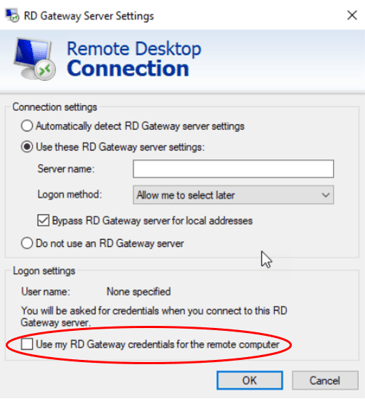
Check the option to Use my RD Gateway credentials for the remote computer:
Uncheck the option for Bypass RD Gateway server:

In the Serer name field, type in the Gateway name provided in your welcome email.
Click OK.
Click on the General tab at the top of the window:
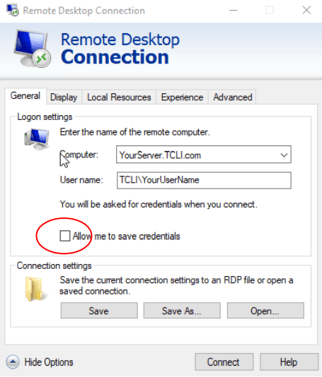
Check the box to Allow me to save credentials.
Click the Save As button and select your desktop:
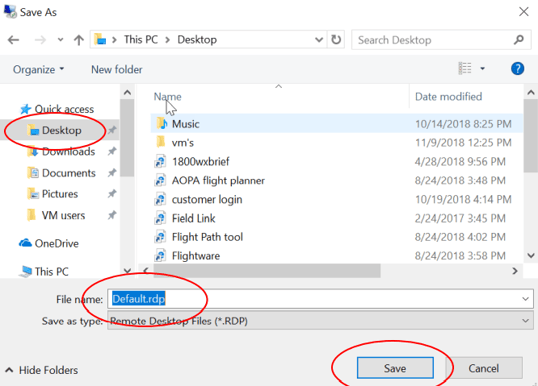
Change the word default to Estimating Link.rdp and click Save.
Now click on the Connect button. A Remote Desktop Connection window will appear:
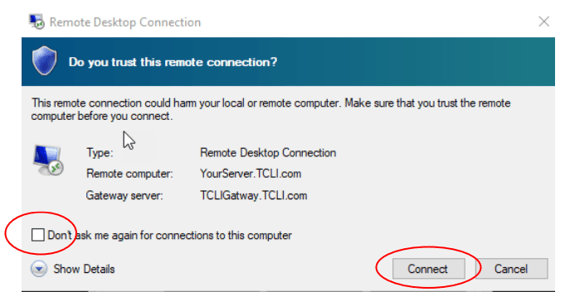
Check the box Don't as me again for connections to this computer. Click Connect.
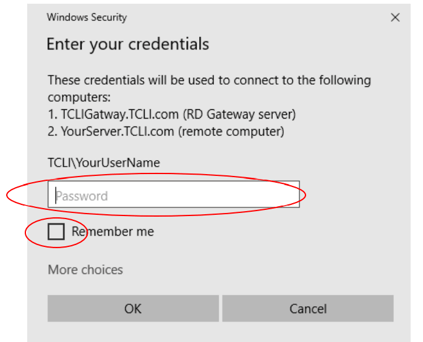
A Windows Security window will now be displayed. Enter the password provided in your welcome email and check the box Remember me:
You should now have access to Cloud Link. Your Estimating Link Icon will be available on your Cloud Link desktop to access your estimating software.