
Because EL4 is web-native and runs directly in your browser, you can use your browser’s built-in translation feature to help read menus, labels, and other on-screen text in your preferred language.
EL4 currently uses English, and we plan to add a built-in language options. In the meantime, browser translation may help you explore EL4 in in your preferred language.
Before you begin
Open EL4 and sign in. If your browser offers to translate the page, choose your preferred language and select Translate. If no prompt appears, follow the steps for your browser below.
These instructions are for desktop or laptop computers. Translation prompts depend on your browser’s language preferences and settings, rather than location alone. Available languages and menu names can vary by browser version and region.
About the images: The illustrations use Spanish as an example. Select your own preferred language from the available options.
Privacy when translating
Chrome, Edge, and Safari use online translation services that send page text to the browser provider. Firefox processes its built-in translations on your device. Follow your company’s data-sharing policies before translating screens containing confidential project or customer information.
Choose your browser: Google Chrome • Microsoft Edge • Safari on Mac • Mozilla Firefox
Tip: TCLI recommends Google Chrome for EL4.
Keep in mind
Browser translation is an interim aid, rather than a built-in EL4 language setting. Automatic translations can misinterpret words or context, including construction terminology. If wording seems unclear, return to the original English text or contact our team.
These instructions apply to webpage text. Do not rely on browser translation to translate downloaded reports, exports, or text within images.
If translation does not appear or a language is unavailable, check your browser’s translation settings and the official help article linked in its section. If your company manages your browser, ask your IT team for help.
Google Chrome
-
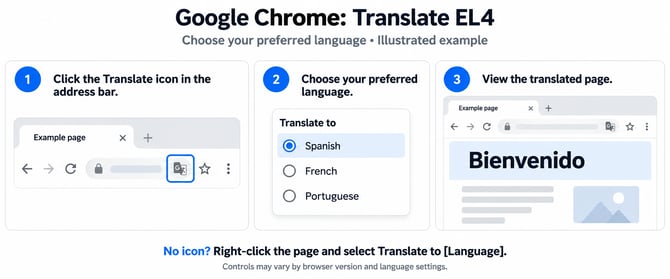
With EL4 open, click the Translate icon on the right side of the address bar.
-
Select your preferred language in the translation controls.
-
If the icon is missing, right-click the page and select Translate to [Language], then choose your preferred language.
Set your preferred translation language
-
Open the three-dot menu > Settings > Languages.
-
Under Google Translate, turn on Use Google Translate.
-
Select Translate into this language and choose your preferred language.
Translate automatically: Under Automatically translate these languages, add English. This setting also affects other English websites.
If translation fails: Refresh the page and try again.
Microsoft Edge
-
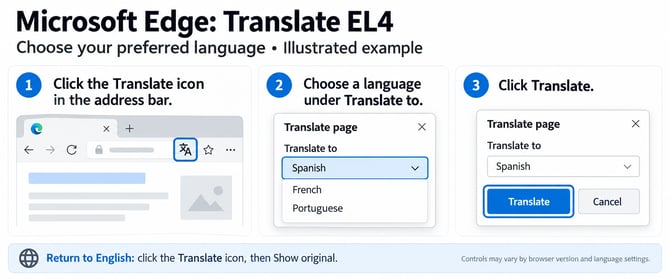
With EL4 open, click the Translate icon in the address bar.
-
Under Translate to, choose your preferred language.
-
Select Translate.
Translate automatically: Select Always translate from English in the translation panel. This setting also affects other English websites.
If translation is not offered
Open the three-dot menu > Settings > Languages. Enable Offer to translate pages that aren’t in a language I read.
Return to English: Click the Translate icon and select Show original.
Safari on Mac
-
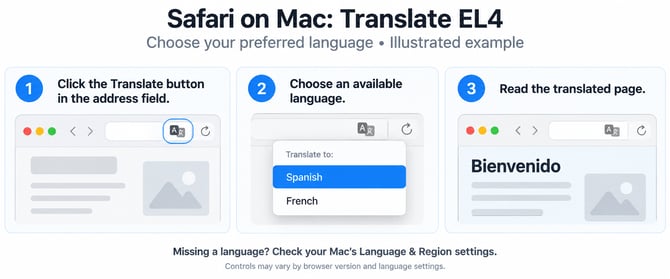
With EL4 open, look for the Translate button in Safari’s address/search field.
-
Click the button and choose your preferred language from the available options.
If your language is not listed
Add it to your preferred languages in your Mac’s Language & Region settings. If Safari supports translation into that language, it should then appear in the translation menu.
If the Translate button is missing: Safari displays it only when it can translate the page. Availability varies by country or region.
Mozilla Firefox
-
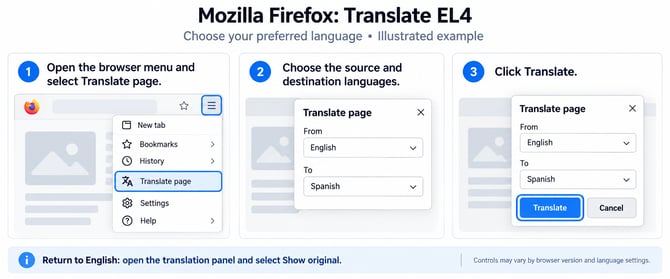
With EL4 open, select Translate page from Firefox’s three-line menu, or click the translation icon.
-
Confirm English as the source language and select your preferred destination language.
-
Click Translate.
Translate automatically: Open the translation panel, click the gear icon, and select Always translate English. This also affects other English websites.
Return to English: Open the translation panel and select Show original.
If controls are missing: Try right-clicking the page and selecting Translate page. Make sure your Firefox version supports the selected languages.