
Overview
Field Link give you the ability to assign equipment to an employee, auto-populating the timesheet with the assigned equipment. Most users who interface their accounting system with Field Link will need to utilize this feature.
Assigning Equipment
Employees must be listed on the timesheet in order to assign the equipment.
-
Click the equipment icon next to the employee.
- Select the desired piece(s) of equipment assigned to the employee and click Save.
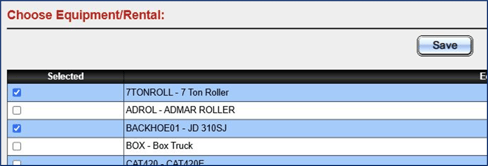
- The equipment will be displayed in your equipment list with the employee's initials indicating it is an assigned piece of equipment.

- Enter the employee and equipment time as needed.
💡Tip: Owned and Rented Equipment are available for assignment to the employee. The list of equipment is separated by headers for both. Rental equipment is listed further down the list.
Changing Equipment
Equipment can be changed for the employee as you continue populating timesheets.
- Click the equipment icon next to the name of the employee on the timesheet.
- Deselect the equipment you want to remove, and select the equipment you want to assign.
- The unassigned equipment will be removed from the timesheet, and the new assigned equipment will be displayed.
- Enter time on the employee and equipment as usual.
Deleting Equipment
Equipment can be deleted directly from the equipment list, even if it is assigned to an employee.
- Click the "-" symbol next to the piece of equipment you want to delete.
- Confirm how you want to manage the deletion
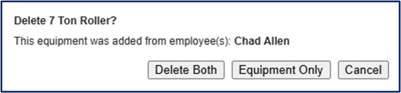
⚠️Warning: Equipment wil be deleted automatically from the equipment list when an employee is deleted and the equipment is associated to that employee.