
Video: Your First Bid in EL4 (5:31)
In this quick video, you'll build a complete bid in Estimating Link 4 (EL4), from a blank project to a finished Proposal - Lump Sum. We use our demo company, Low Bidder Excavating, and they win every job. Follow along with the steps below, or read the full transcript at the end of this article.
What you'll build
A water main job, the Elm Street Water Main in Anytown, New York, with three bid items:
|
Item |
Description |
Unit |
Bid quantity |
How it's priced |
|---|---|---|---|---|
|
100 |
Mobilization |
LS |
1 |
Subcontractor write-in, $4,500 lump sum |
|
200 |
8in DIP Water Main |
LF |
1,200 |
Pipe laborer, Excavator 320, and 8in DIP pipe at $68/LF, over 8 days |
|
300 |
Asphalt Patch |
SY |
450 |
Subcontractor write-in, $38/SY |
The bid toolbar icons
Four icons sit at the top right of the Bid tab. This article always calls them by these names:
- Tools icon (crossed tools): Markup Summary, Check Bid, Auto Bid Unit, and more.
- Designate icon
- Add icon (plus sign): New Item, and Rate as Write-In on the Item tab.
- Delete icon (trash can)
Step 1: Create a blank project
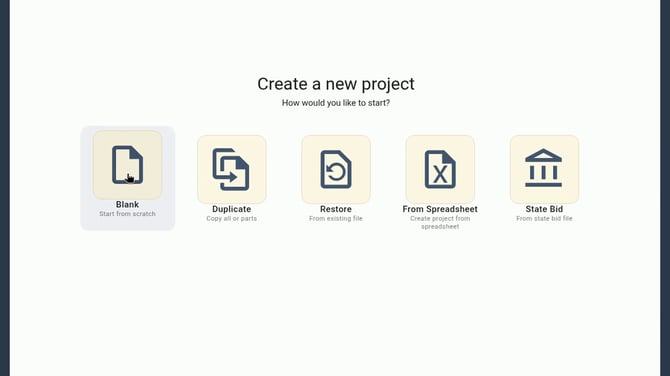
- On the left main navigation bar, click Create.
- Click Blank to start a project from scratch.
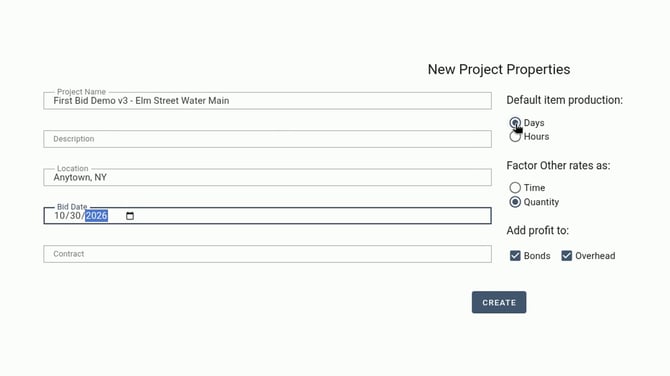
- Enter the Project Name, Location, and Bid Date.
- Leave Default item production set to Days.
- Click Create. Every project begins on the Bid tab.
Step 2: Add your bid items
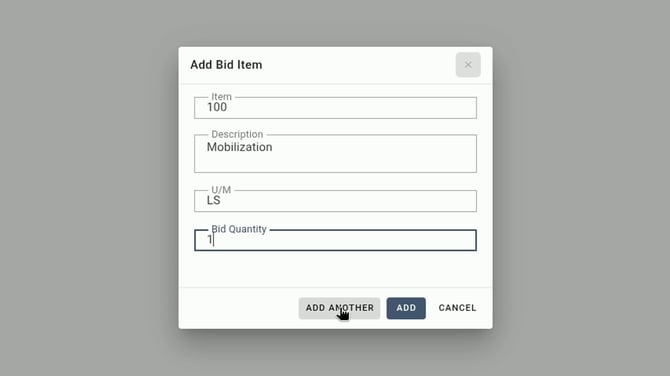
- On the Bid tab, click the Add icon and choose New Item.
- Type the item number, description, unit, and bid quantity.
- Click Add to add the item to the Bid tab and close the window, or click Add Another to add it and keep the window open for the next item.
- Repeat for each bid item.
Put items in the order you want
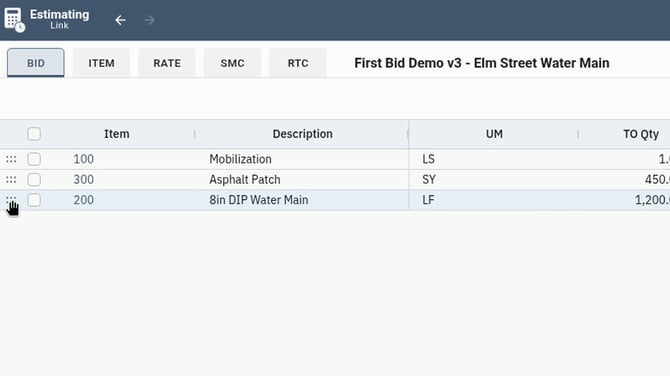
The grid lists items in the order you add them. You can drag and drop any primary item by the handle at the left of its row. In the demo, we drag item 200 up between 100 and 300.
Step 3: Cost the pipe with write-in rates
Write-ins let you price an item before you've imported rates. As long as Add to Rate Tab is checked, the write-in is saved to the Rate tab so you can use it again.
Labor
- Click item 200 to open its Item tab.
- Click the Add icon, then Rate as Write-In, then Labor.
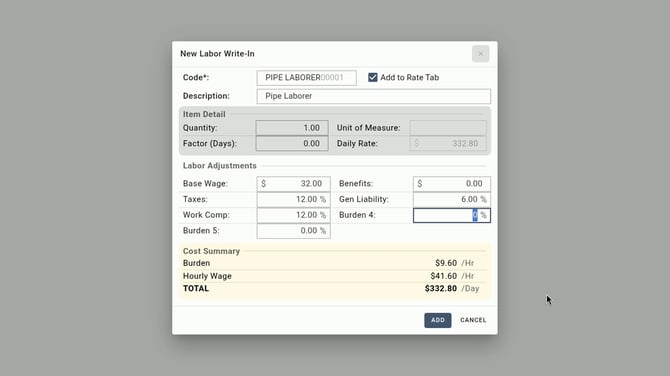
- Enter the code, description, and Base Wage ($32.00 an hour in the demo).
- Enter the burden. In the demo, 30% is split across the company's burden fields: Taxes 12%, Work Comp 12%, and Gen Liability 6%, for a burden of $9.60 an hour. Your burden fields may be named differently.
- EL4 prices labor by the day, shown in the Cost Summary section: $41.60 an hour x 8 hours = $332.80/Day.
- Leave Add to Rate Tab checked, then click Add.
Equipment
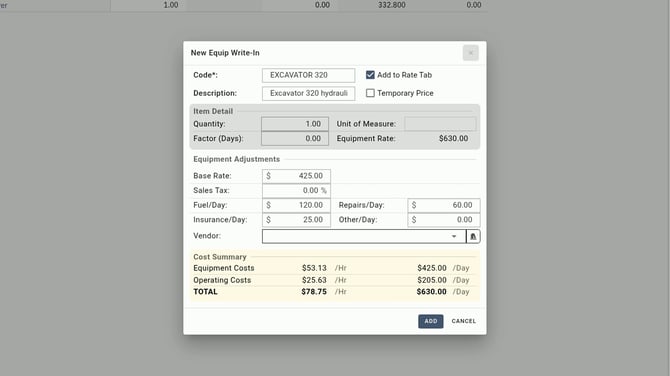
- Click the Add icon > Rate as Write-In > Equip.
- Enter the Excavator 320 with a Base Rate of $425.00 a day, plus Fuel/Day $120.00, Repairs/Day $60.00, and Insurance/Day $25.00, for $630.00/Day.
- Click Add.
Material
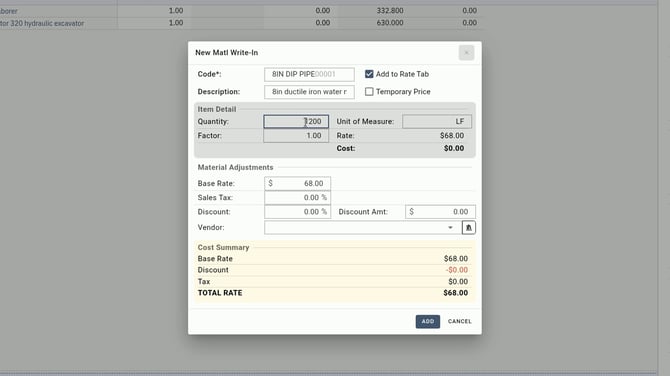
- Click the Add icon > Rate as Write-In > Matl.
- Enter 8in DIP pipe, unit of measure LF, and Base Rate $68.00.
- Enter Quantity 1,200. That's the 1,200 linear feet of pipe for the whole item, so the material costs $81,600.00.
- Click Add.
Step 4: Enter Days Required
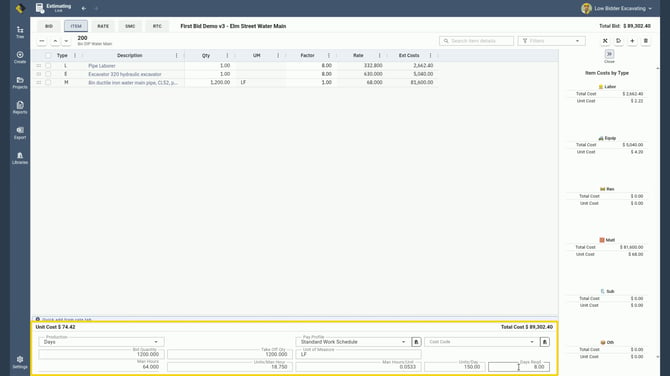
- At the bottom of the Item tab is the production pane. Enter 8 in Days Required (shown as Days Reqd.).
- EL4 figures the rest for you: Man Hours 64.000, Units/Man Hour 18.750, Man Hours/Unit 0.0533, and Units/Day 150.00.
- Check the item's Unit Cost ($74.42) and Total Cost ($89,302.40).
Step 5: Cost the other items
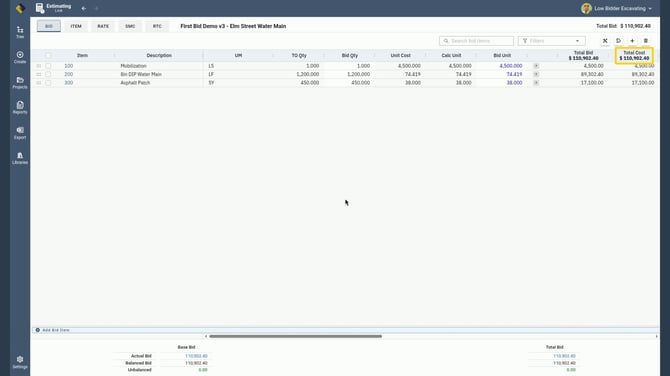
Price item 100 (mobilization, $4,500 lump sum) and item 300 (asphalt patch, $38 a square yard, $17,100.00) the same way. Back on the Bid tab, item 200 shows a Unit Cost of 74.419, and the project's Total Cost is $110,902.40.
Step 6: Add markup by cost type
- On the Bid tab, click the Tools icon, then Markup Summary.
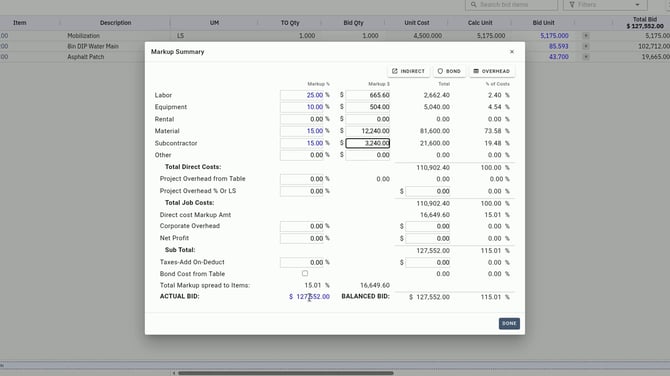
- Enter a Markup % for each cost type. You can mark up each type differently. Labor carries the most risk, so the demo uses:
- Labor: 25% ($665.60)
- Equipment (owned): 10% ($504.00)
- Material: 15% ($12,240.00)
- Subcontractor: 15% ($3,240.00)
- The total markup is $16,649.60 (15.01%), for an Actual Bid of $127,552.00. Click Done.
Review the markup percent on the grid
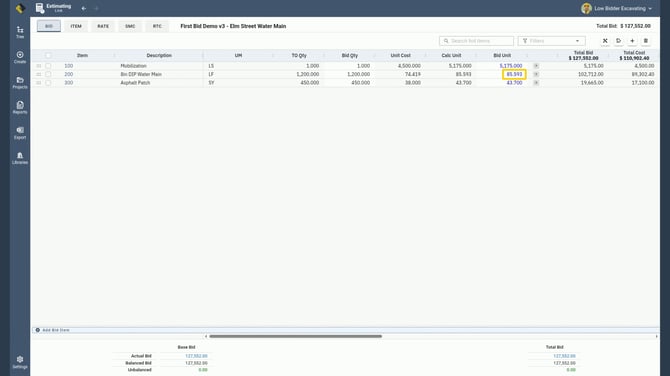
- Scroll right to the MU% (markup percent) column to see the markup on each item. In the demo, each item shows 15.0.
- The markup percent comes from the Markup Summary window. You can also type over it right on the grid.
- Calc Unit is your marked-up unit price. Bid Unit is what you actually bid. For item 200, both are 85.593.
Step 7: Check and round the bid
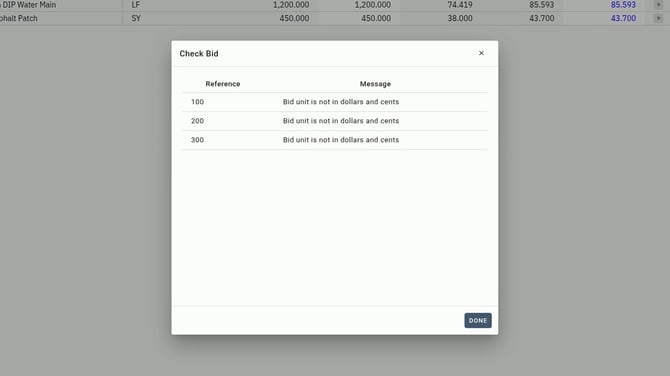
- Before the bid goes out, click the Tools icon, then Check Bid. In the demo, it lists items 100, 200, and 300 with "Bid unit is not in dollars and cents." Not even Low Bidder bids in fractions of a cent.
- Hover over an error to see what's wrong.
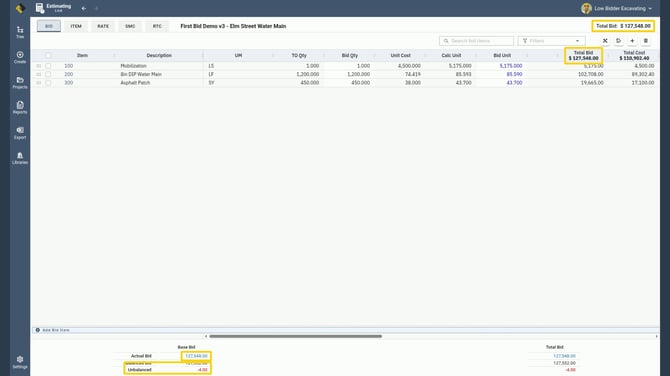
- To fix bid units that aren't in dollars and cents, go to the Bid tab, click the Tools icon, then Auto Bid Unit. It rounds every bid unit for you. Item 200's Bid Unit goes from 85.593 to 85.590.
- Check the Total Bid: $127,548.00. A small red Unbalanced number after rounding (-4.00 in the demo) is normal.
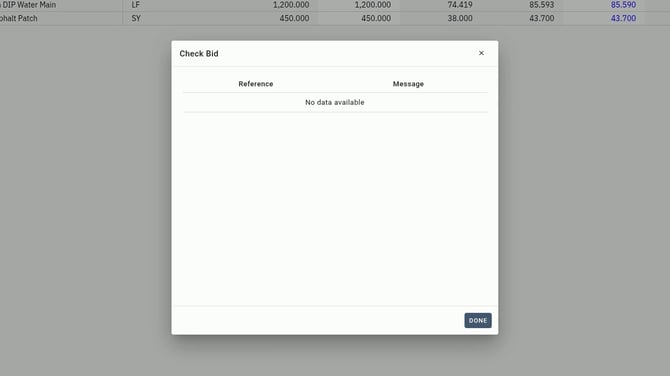
- Run Check Bid again. An empty list ("No data available") means you're good.
Step 8: Build and download the proposal
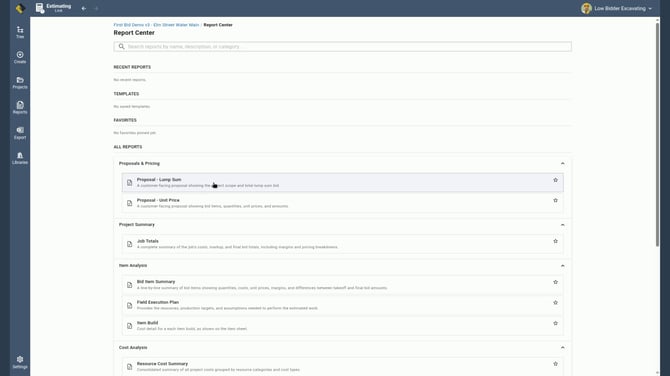
- Click Reports on the main navigation bar on the left.
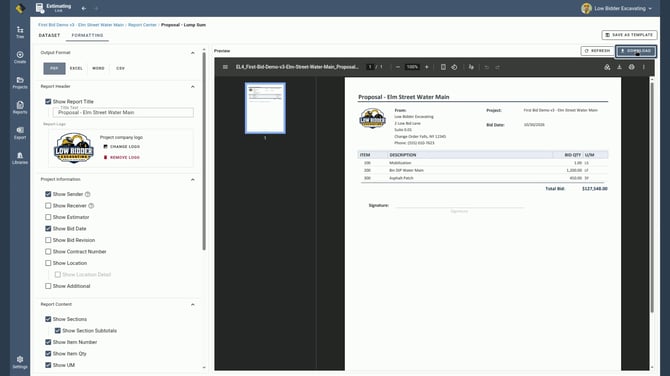
- Under Proposals & Pricing, choose Proposal - Lump Sum. Your project is already picked, and your company logo is right on top.
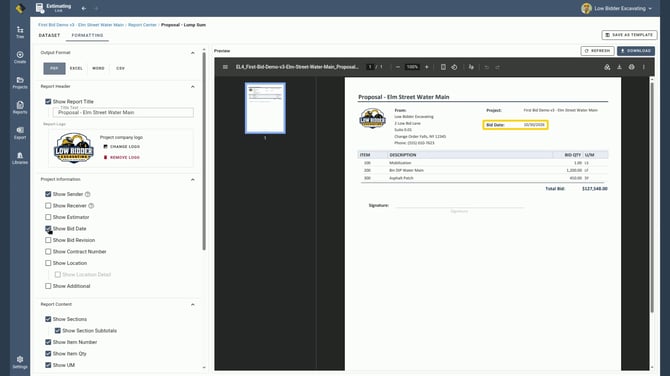
- Open the Formatting tab:
- Report Logo picks up your company logo automatically.
- Change the Title Text, and the preview updates.
- Check Show Bid Date, and the bid date drops right in.
- When it looks right, click Download. That's your first bid in EL4. Hopefully a little higher than Low Bidder's.
Tips
- Material quantity on a write-in is the item total, not 1.
- Enter Days Required, and EL4 figures the Units per Day, Man Hours, Units per Man Hour, and Man Hours per Unit.
- Use Add Another when you have several bid items. It's faster.
- Mark up labor more than owned equipment to cover the extra risk.
- Run Check Bid before every bid goes out.
Frequently asked questions
How do I create a new bid in Estimating Link 4 (EL4)?
In Estimating Link 4 (EL4), click Create on the left main navigation bar, choose Blank, fill in the project properties, and click Create. Every project begins on the Bid tab, where you click the Add icon and choose New Item to add bid items with an item number, description, unit, and bid quantity.
How do I enter labor, equipment, and material rates for a bid item in EL4?
In EL4, open the item, click the Add icon, choose Rate as Write-In, and pick Labor, Equip, or Matl. Leave Add to Rate Tab checked so you can use the write-in again, then enter Days Required in the production pane and EL4 figures the man hours, units per day, unit cost, and total cost.
How do I mark up a bid by cost type in EL4?
In EL4, open the Bid tab, click the Tools icon, then Markup Summary, and enter a separate markup percent for labor, equipment, material, and subcontractor. Each item's markup percent appears in the MU% column on the Bid tab, where you can also type over it.
How do I check a bid for errors and round unit prices in EL4?
In EL4, click the Tools icon on the Bid tab, then Check Bid. If it finds bid units that aren't in dollars and cents, click the Tools icon, then Auto Bid Unit, and EL4 rounds every bid unit for you. Run Check Bid again; an empty list means the bid is ready.
Is EL4 easy to learn?
EL4 is built to be easy to learn: the video above goes from a blank project to a downloaded lump sum proposal in under six minutes.
Need help?
- EL4 Feedback form: Profile menu > Feedback
- Knowledge Link articles: www.tcli.com/knowledge
- Phone and email: (800) 448-0741 or Support@TCLI.com
Transcript: Your First Bid in EL4
Full narration from the final video, grouped by chapter. Times match the YouTube chapters.
0:00 Intro
Welcome back! In this quick video, we'll build your first bid in EL4, from a blank project to a finished proposal. Let's get started. Our company is Low Bidder Excavating, and they win every job.
0:15 Create a new bid project
On the left main navigation bar, click create. Then click Blank to create a project from scratch. We're bidding the Elm Street Water Main in Anytown, New York. Production is set to Days, which is what we want. Click Create.
0:36 Add bid items and quantities
Every project begins on the Bid tab. To add an item or phase of the job, click the Add icon and choose New Item. Type the item number, description, unit, and bid quantity. Click Add to instantly add it to the Bid tab or click Add Another and repeat for each new item. Here are our three items. The grid lists items in the order you add them. You can easily drag and drop any primary item, so let's drag 200 up between 100 and 300.
1:16 Enter labor, equipment & material rates (Rate as Write-In)
Now let's cost the pipe. Click item 200 to open item 200's Item tab. Click the Add icon, then Rate as Write-In, then Labor. We're using the write-in feature because we have not imported rates yet, and as long as we have the check next to Add to Rate Tab, the write-in can be used again. Our pipe laborer runs $32 an hour, plus 30% burden, split across taxes, workers' comp, and general liability. Now EL4 prices labor by the day: $332.80, shown in the Cost Summary section. Click Add. Add equipment the same way: an Excavator 320 at $630 a day with fuel, repairs, and insurance. Then the pipe, as a material write-in at $68 a foot. We'll need 1,200 linear feet of the eight inch pipe.
2:23 Set production with Days Required
At the bottom of the Item tab is the production pane. Enter 8 in Days Required. Now EL4 figures the Man Hours, Units per Man Hour, Man Hours per Unit and Units per Day for you and shows you the item's unit cost and total cost. Now let's head back to the Bid tab to see how item 200 rolls up. We priced mobilization at $4,500 and the asphalt patch at $38 a yard the same way. Total cost: $110,902.40.
3:03 Mark up by cost type (Markup Summary)
Now let's add markup. On the Bid tab, click the Tools icon, then Markup Summary. You can mark up each cost type differently. Labor carries the most risk, so we'll put 25% on labor. Our own equipment is lower risk, so it gets 10%. Material and subcontractor get 15%. Click Done. Scroll right to the markup percent column to see the markup on each item. That markup percent came from the Markup Summary window, and you can also type over it manually, right on the grid. Calc Unit is your marked-up unit price. Bid Unit is what you actually bid.
3:50 Check the bid for errors (Check Bid)
Before the bid goes out, click the Tools icon and then Check Bid. It found bid units that aren't in dollars and cents. Not even Low Bidder bids in fractions of a cent.
4:02 Round unit prices (Auto Bid Unit)
Hover over an error to see what's wrong. The fix for these errors is on the Bid tab: click the Tools icon, then Auto Bid Unit. It rounds every bid unit for you. Total bid: $127,548. A small red unbalanced number after rounding is normal. Run Check Bid again. An empty list means you're good.
4:35 Print a lump sum proposal
Now let's build the proposal. Click Reports on the main navigation bar on the left. Under Proposals and Pricing, choose Proposal, Lump Sum. Your project is already picked, and your company logo is right on top. Open the Formatting tab. Report Logo picks up your company logo automatically. Change the Title Text, and the preview updates. Check Show Bid Date, and the bid date drops right in. When it looks right, click Download. That's your first bid in EL4. Hopefully a little higher than Low Bidder's.
5:19 Wrap-up
Well, that's all for now. Be sure to check out our other videos. As always, you can contact us direct and we'd be happy to help. Thanks for watching!