
Before you use the metric conversion you will need to set up or pick a template for the project you are converting. The program includes a default conversion template that can be used, but is read-only and cannot be modified.
If the default conversion mapping does not meet user needs, a new template can be created and modified to match the unit of measure descriptions in your state or owners’ proposal.
Create a new metric conversion template
-
In Estimating Link, go to Setup>Metric Setup
- You will see the Template is set to "Default", with a list of conversions.
-
Click on New Template at the bottom of the window.
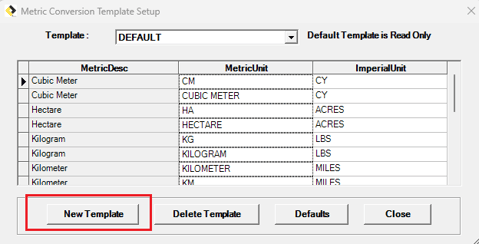
-
Enter the name for the new template and click OK.
-
Use the Table to modify the template as needed.
- First column: Metric Description, which is a description of the metric unit for that row.
- Second column: Metric Unit of measure, which will contain a symbol or name used for the Metric Description in that row.
- The name/acronym for the metric unit can be changed by clicking in the cell you want to change and overwriting it.
- The Metric Unit is the symbol/name that the software searches for in the bid item's Unit of Measure when converting between metric and English
-
Third column: Imperial Unit or English unit which is what the Metric Unit in that row would be converted to.
-
Use the drop-down selector for the Imperial Unit to select the desired conversion unit.
-
- The fourth column is titled "USE". The Use column let's you decide what imperial or English measurement you want the metric units converted to. For example, there are three different imperial units that meters can be converted to. By checking the imperial unit you want, the program will convert the Items that match to the English unit and save that template with the project until it is converted back to metric.
🗒️ Note: The program uses the Default template as a source for the new template. The metric conversion program uses the projects unit of measure to determine which conversion factor to use. It matches an item's unit of measure with the unit of measure in the setup template. If it finds an exact match, it does the conversion; if it doesn't find an exact match it leaves the item quantities, costs and unit of measure as they were.