
To migrate the Estimating Link database (TCLIdb) from one SQL server to another on a different machine, the installer must be familiar with SQL Server permissions and setup processes.
If the SQL server hosts other databases, TCLIdb can be installed within the existing server instance. However, for optimal performance, we recommend setting up TCLIdb on a separate SQL instance. This setup requires re-installing SQL Server and creating a new instance, typically named "TCLI," with dedicated memory allocation. In this guide, we’ll assume that the new SQL server (New Server) will be used exclusively for TCLIdb.
🗒️Note: This operation requires an experienced technician with knowledge in SQL Command Line Queries and Management Studio. This document serves as a guide to assist in the process.
Prerequisites:
- Confirm you have administrative privileges on both servers.
- Have the company's TCLI ID and password ready.
- Confirm the latest version of Estimating Link is installed on both the old and new server.
- Ensure no users are on the old server before stopping the SQL service (SQL Server (TCLI)).
Step 1 - Ensure Estimating Link is installed on old server
Estimating Link should already be installed on your old server, but it may not be the latest version. If it is not installed, or you do not have the latest version installed, download and install EL3_Full_Install.exe (new installation) or install EL_Update.exe (Update) from the Estimating Link Downloads page onto the server.
Step 2 - Backup Old Server
Find the Server Configuration Tools application by going to C:\Program Files (x86)\Construction Link\Estimating Link V3.
Look for the application named EstimatingLinkServerConfigTool and double click.
Once the program is opened, select Backup Database.
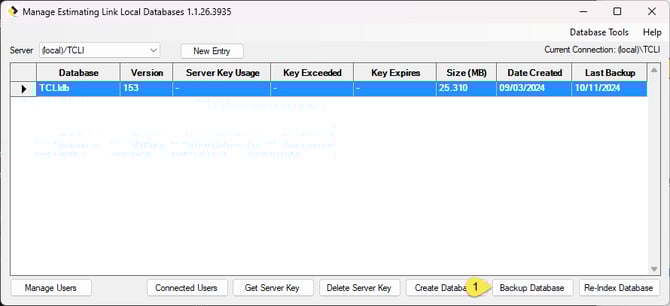
The backup file will be saved on the old server at C:\Program Files (x86)\Microsoft SQL Server\MSSQL12.TCLI\MSSQL\Backup and named similarly to TCLIdb_YYYYMMDD_HHMM.bak.
Locate the backup file, then transfer it to a location accessible by the new server.
Step 3 - Create Database on New Server
Download and install the latest version of Estimating Link onto the new server following these instructions. Note: You do NOT have to launch the program on the server. Just install it.
Step 4 - Delete Database On New Server
If you do not have Microsoft SQL Management Studios on your server, click here to install.
Open SQL Management Studio by pressing Windows + R, typing SSMS.exe, and pressing Enter, or by clicking the SQL Management Studio icon and login with your SQL credentials.
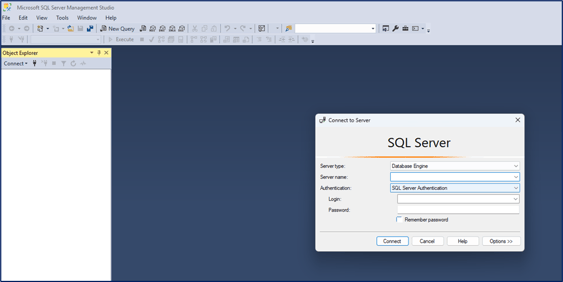
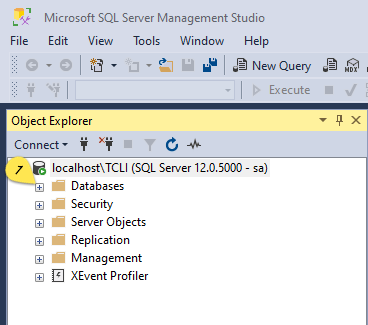
- Expand Databases on the lefthand side
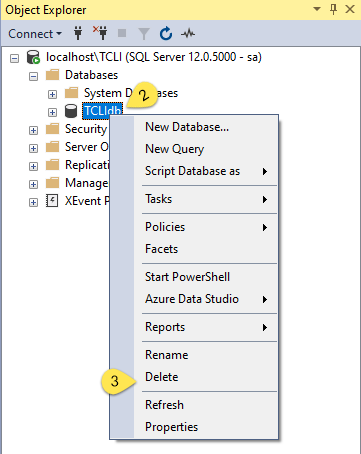
- Right Click on TCLIdb and select Delete
- Click OK
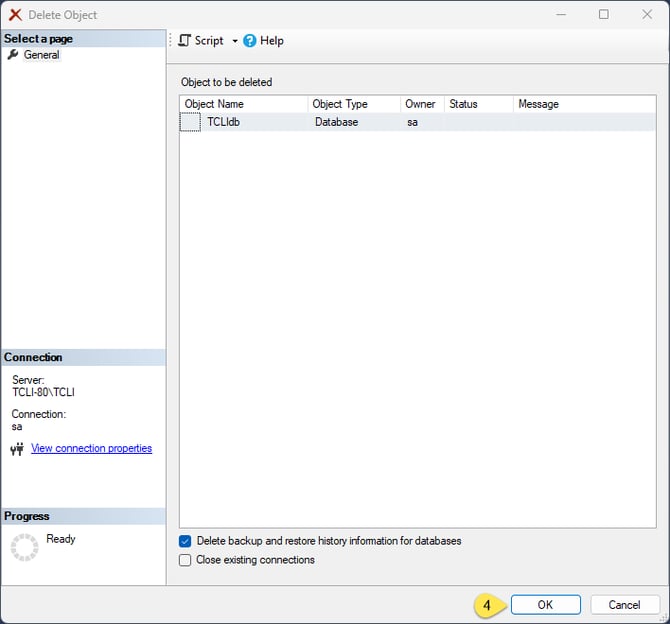
Step 5 - Restore Your Database On New Server
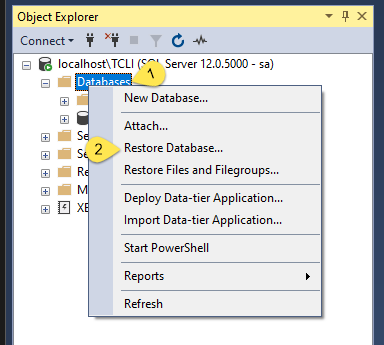
- Right Click on Database and then Restore Database in the sub-menu
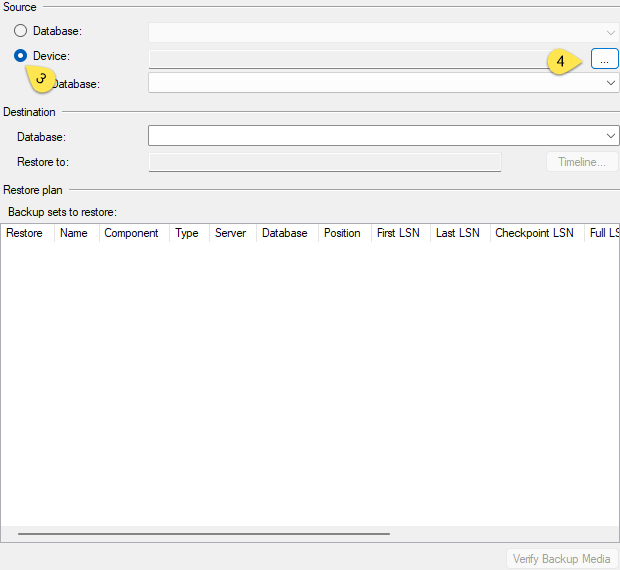
- Choose Device and then click the ellipsis
- Click Add button
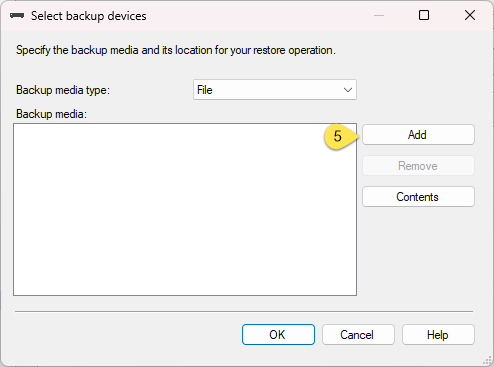
- Locate the backup file you created/transferred in Step 2. Select the file, and click OK
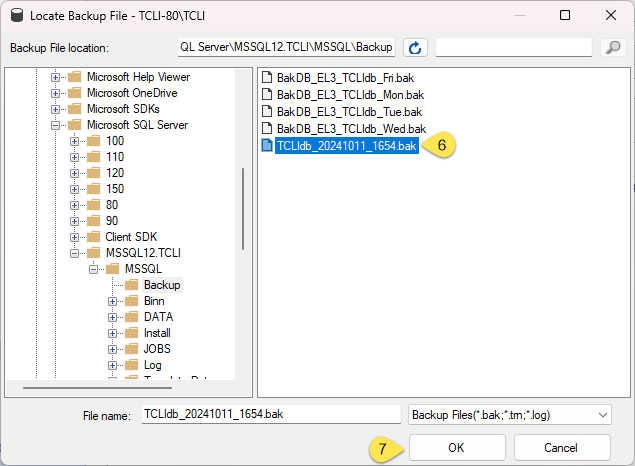
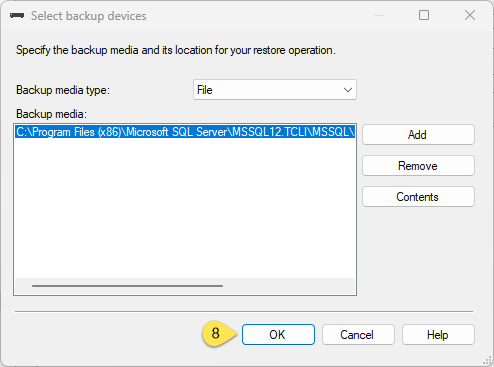
- Choose OK again
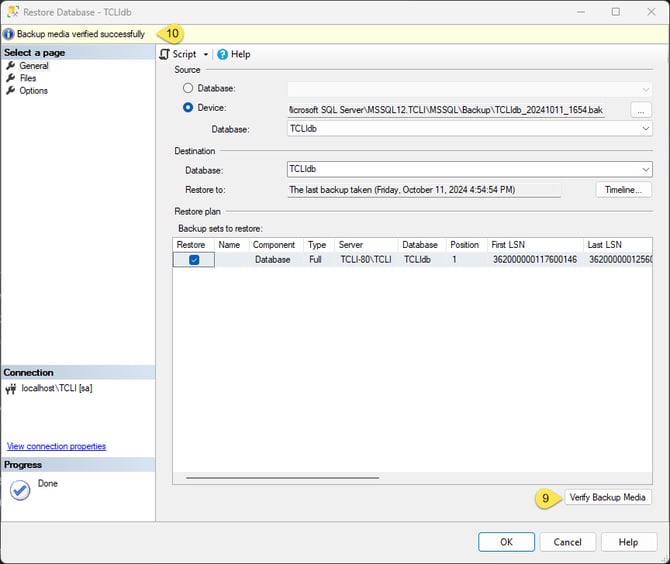
- Click Verify Backup Media, and confirm the backup file is valid
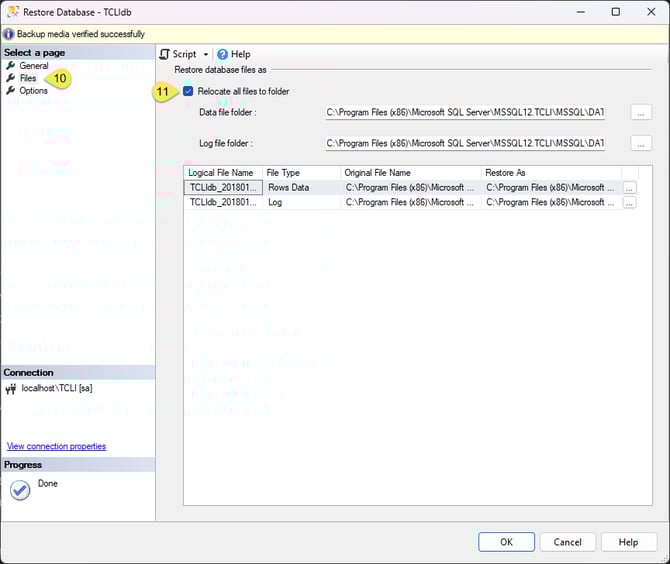
- Click Files, and then choose Relocate all files to folder.
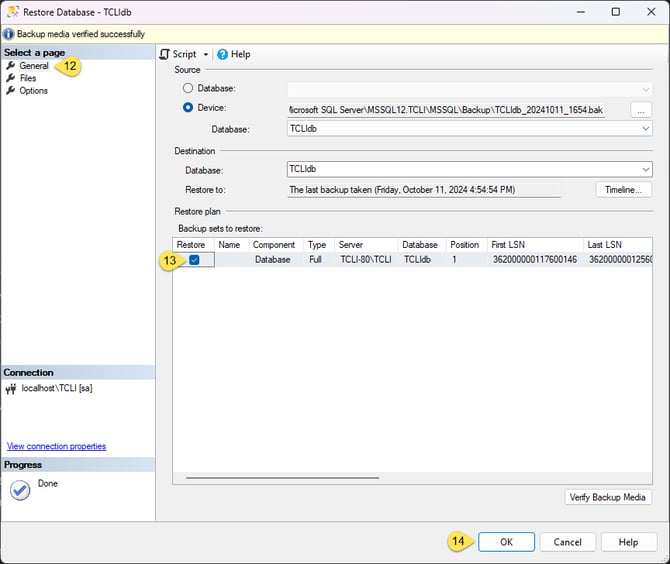
- Go to General, Verify the Restore Checkbox is checked and click OK
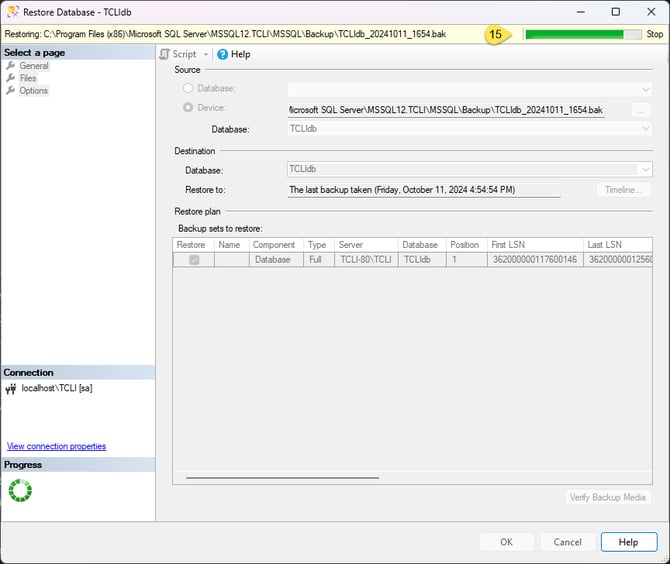
- Wait while your database is restored.
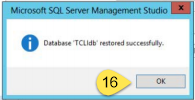
- Verify the results of the restoration and click OK if successful
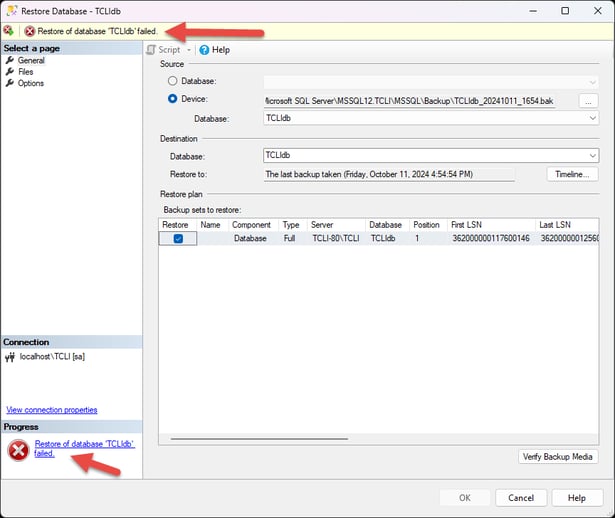
⚠️ Warning: If restoration fails, please contact our support team at 800-448-0741.
Step 6 - Add Permissions to New Database
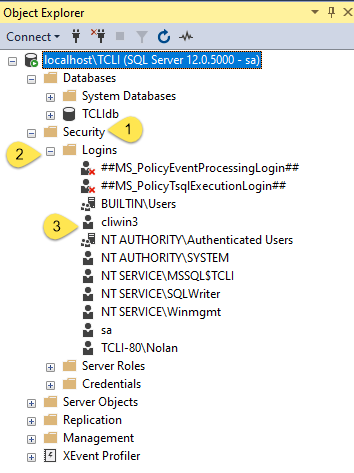
- Expand Security, then Logins and select the user named cliwin3
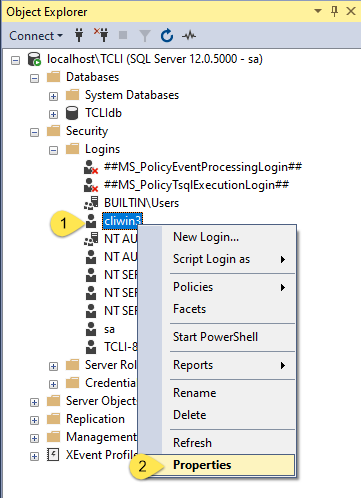
- Right click on the cliwin3 user and select Properties
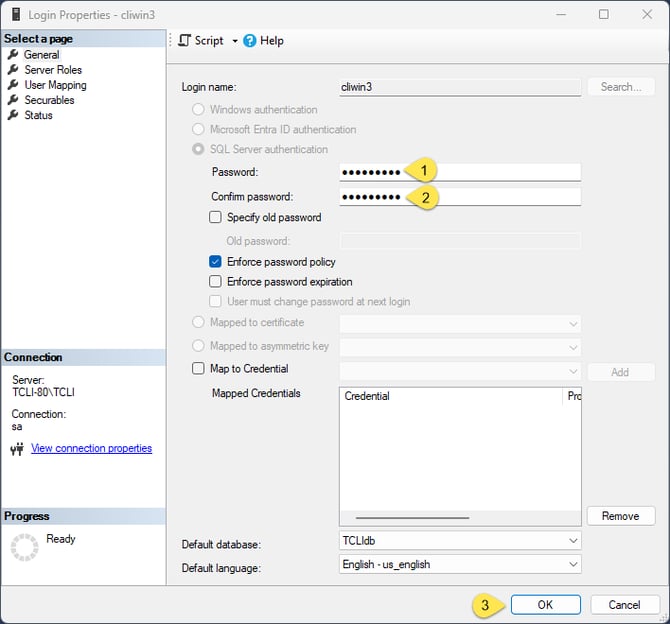
- Set the password to (Call support for password) and press OK
Step 7 - Run 2 SQL Commands
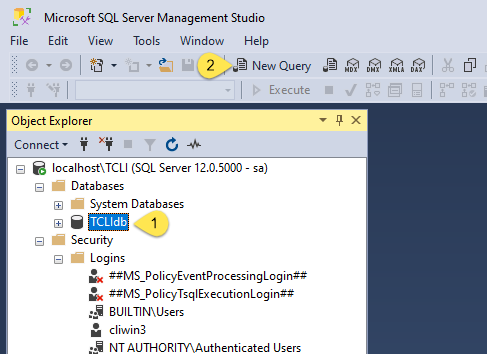
- Select the TCLIdb database and click New Query
- Copy and paste the following text
Use TCLIdbALTER USER cliwin3 WITH LOGIN = cliwin3GO - Click Execute
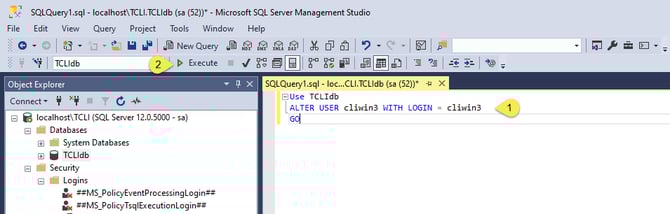
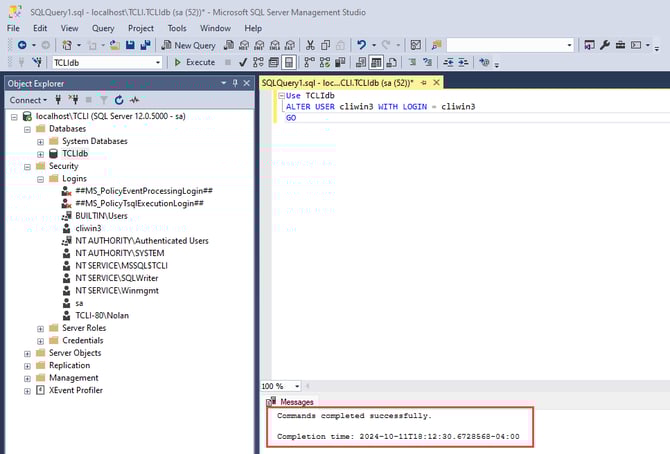
- You should see a success message
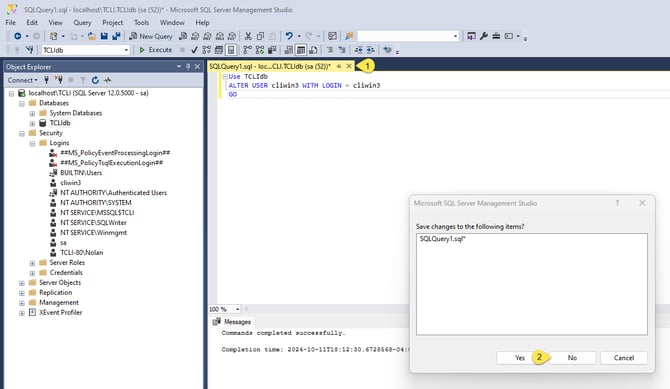
- Click the X to close this query and select No
- Run a second query. Select New Query, copy and paste the text below, then click Execute.
ALTER DATABASE TCLIdb SET DISABLE_BROKER;ALTER DATABASE TCLIdb SET NEW_BROKER WITH ROLLBACK IMMEDIATE;ALTER DATABASE TCLIdb SET ENABLE_BROKER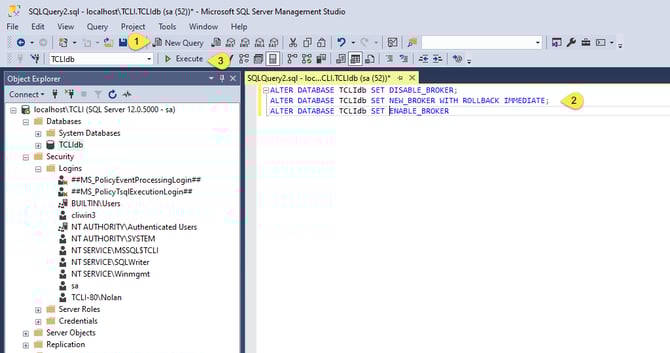
This completes moving the database.
Step 7 - Point Workstations to New Server
You can now create a new connection on each workstation connecting to the New Server.
- In the Estimating Link Program on each client workstation, click on Setup, Options, Database and Add.
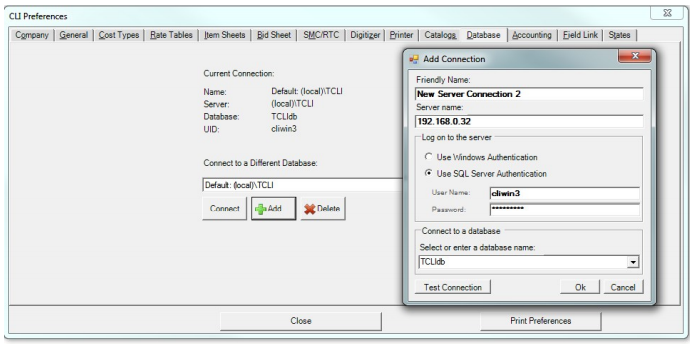
- Change the Server name to the New Server Name or IP address.
- Click on the Test Connection button to make sure it will connect.
- If successful, click OK. Click on the down arrow at the end of the database name field and select your new connection.
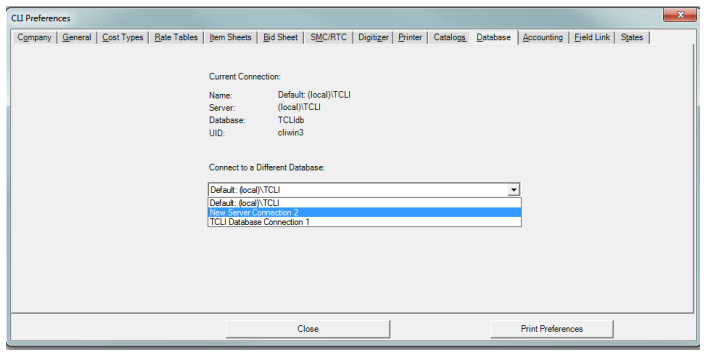
- Click on the Connect button. The program will close and restart using the new server database.
🗒️Note: You can check the database connection by clicking on Help and About to see the current connection.
💡Tip: You will have to do the previous step on each workstation that is connected to the server if the server name has changed.
If we can be of further assistance, please reach out to us at anytime: (800) 448 -0741 or Support@TCLI.com.